How to Create AI Avatar in CapCut: Complete 2026 Guide
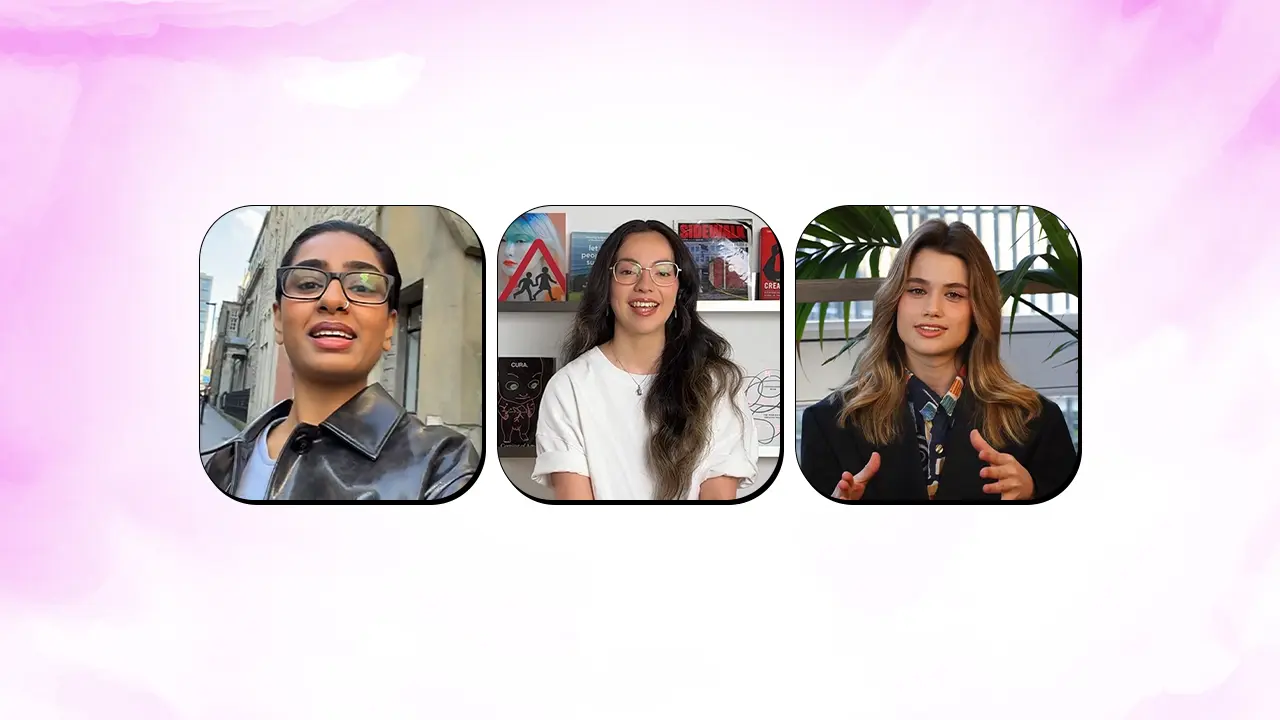
CapCut emerged as the leading free AI avatar generator in 2025, surpassing specialized tools by integrating avatar creation directly into its video editing platform. You can now create professional, talking AI avatars from a single photo or video in minutes—no external software required. Whether you're a content creator, educator, marketer, or entrepreneur, CapCut's AI avatar tools transform how you create video content.
This comprehensive guide reveals exactly how to create stunning AI avatars in CapCut, from basic to advanced techniques.
Why CapCut Is the Best Choice for AI Avatars in 2025
CapCut has positioned itself as the dominant AI avatar platform for several compelling reasons:
CapCut App stands out as the best AI avatar generator in 2025 with its user-friendly interface, robust features, and seamless workflow, making it the perfect solution for both beginners and professionals.
Key Advantages:
CapCut's AI avatar generator can design distinctive, non-anime characters that let you creatively showcase your personality and style, ideal for creating videos for marketing, education, social media, and personal branding.
- All-in-one platform: Create avatars, edit videos, add effects, generate scripts, and export—all without leaving CapCut.
- With over 1000+ digital human categories to suit different creative needs, you can personalize avatars with 150+ AI voiceovers, unique backgrounds, and stylish frames for a truly tailored look.
- Completely free: No subscription required for basic avatar creation and editing.
- Mobile-first: Download the CapCut app on iOS or Android for on-the-go creation.
- Web-accessible: CapCut Web lets you create avatars directly in your browser—no download needed.
Understanding Avatar Types in CapCut
Before creating your avatar, understand the types available:
Pre-Built Avatars:
CapCut offers over 100 customizable avatars across categories like Trending, AI-Generated, Professional, and Casual, each offering a wide range of characters. These are instantly ready to use—you simply add your script and choose a voice.
Custom Photo-Based Avatars:
Simply upload a photo, and CapCut's free avatar maker will animate it into a lifelike talking character with accurate lip-sync. Perfect for creating a digital clone of yourself or a colleague.
Video-Based Avatars (Most Realistic):
Choose "Create with video" if you want to record a 10-second video of yourself for the most natural movements and expressions. This captures genuine facial expressions and body language.
2D vs. 3D Avatars:
2D avatars are flat, suitable for social media videos and simple content. 3D avatars are more realistic, used in AR/VR environments and immersive experiences.
Method 1: Creating AI Avatar from Pre-Built Characters (Fastest)
This is the quickest way to start. Perfect for content creators who want results immediately.
Step 1: Open CapCut and Select Avatar Video
Download CapCut on your phone or visit CapCut Web. Log in to CapCut Web and open the "Free AI video maker", then select "Avatar video" to browse the AI avatar collection, including categories like Trending, AI-Generated, Professional, or Casual.
Step 2: Browse and Select Your Avatar
Scroll through the recommended section of AI avatars to find one that fits your script's tone. Preview different avatars until you find one matching your content style and audience expectations.
Step 3: Write or Generate Your Script
You can either manually type your script or click on the "Generate script" option, enter a prompt, and let AI automatically generate the script for you.
For example, if you're creating a finance educational video, your prompt might be: "Write a 3-minute script explaining cryptocurrency to beginners. Include 3 key advantages and address common concerns. Use simple language and include engaging examples."
Step 4: Choose Your Voice
Choose a voice from the drop-down menu and set the video duration according to your preference. CapCut offers various tones, languages, and accents from its diverse Text-to-Speech library.
Step 5: Generate and Export
Click "Generate" and watch CapCut create your video. Once satisfied, click "Export" to download your final video.
Time to Completion: 5-10 minutes from start to polished video.
Method 2: Creating Your Custom Avatar from a Photo
This method creates a personalized avatar that looks like you—perfect for personal branding, course creation, or business communication.
Step 1: Download CapCut and Access AI Labs
Download the CapCut App from the official links and install it on your smartphone. Once done, launch the app and then from the homepage, select the "AI labs" tab from the bottom of your screen.
Step 2: Navigate to AI Avatars
In the "More tools" section, select the "AI avatars" option, which will open the avatar creation interface.
Step 3: Choose Your Creation Method
Select "Create with photo" to make your photos talk or sing using just a single clear image. Choose a high-quality, well-lit photo with your face clearly visible.
Step 4: Upload Your Photo
Proceed to upload your photo to the CapCut App, which will be used for your avatar generation process. For best results, use a photo where you're looking directly at the camera, with good lighting and a plain background.
Step 5: Process and Customize
CapCut processes your photo using AI to create a talking avatar. You can customize skin tone, hairstyle, clothing style, and facial expressions during this stage.
Step 6: Add Your Script and Voice
Write a script or let CapCut's AI generate one. Select your preferred voice from the text-to-speech library. This feature ensures perfect matching of the avatar's lip movements to the spoken script, vital for making the narration appear credible and engaging.
Step 7: Generate and Export
Generate your video and preview it. Make adjustments if needed, then export your final avatar video.
Time to Completion: 10-15 minutes.
Best For: Creating a digital version of yourself for courses, testimonials, introductions, or video marketing.
Method 3: Creating Your Custom Avatar from Video (Most Realistic)
This method captures your natural expressions, gestures, and mannerisms—creating the most authentic personal avatar.
Step 1: Record a 10-Second Video of Yourself
Choose "Create with video" if you want to record a 10-second video of yourself for the most natural movements and expressions.
Record in good lighting, speaking naturally. Look at the camera. Vary your expressions—smile, frown, look thoughtful. Show different emotions and gestures.
Step 2: Access CapCut Avatar Creation
Open CapCut, go to "AI Labs," and select "AI Avatars." Choose "Create with video."
Step 3: Upload Your Video
Upload a video containing your portrait and click "Next." Then, upload a video reading text given by CapCut by clicking the upload button.
Step 4: CapCut Analyzes Your Video
CapCut's AI processes your video, analyzing facial features, expressions, movements, and speech patterns. This typically takes 2-5 minutes.
Step 5: Customize Voice (Optional)
To customize your voice when creating custom avatars, click "Voice" in the avatar video interface, and click "+" to read the text that is given by CapCut for 10 seconds. It will generate your own AI voice quickly. This clones your actual voice for unprecedented authenticity.
Step 6: Create Avatar Videos
Once your custom avatar is created, you can generate unlimited videos using this avatar. Simply provide a script, choose settings, and generate.
Step 7: Export and Share
Once satisfied with your character's appearance, finalize the creation process by exporting it. Download it to your device for future use or share it directly on YouTube or TikTok.
Time to Completion: 15-20 minutes including upload and processing.
Best For: Creating the most authentic personal avatar with your actual voice and expressions.
Step-by-Step: Creating Your First Avatar Video
Here's the complete workflow using CapCut's avatar video feature:
Step 1: Start New Project
Open CapCut and select "Start with script" on the homepage. Choose "Avatar video" from the options.
Step 2: Select Your Avatar
Browse the avatar library. Select a pre-built avatar that matches your content style, or use your custom avatar if already created.
Step 3: Write Your Script
You can either manually type your script or click on the "Generate script" option, enter a prompt, and let AI automatically generate the script for you.
Pro tip: Write conversational, engaging scripts. Include hooks, examples, and clear calls-to-action. Avoid robotic phrasing.
Step 4: Choose Audio Settings
Select a voice that matches your avatar's appearance and your content tone. CapCut offers various tones, languages, and accents from its diverse Text-to-Speech library.
Step 5: Generate Your Avatar Video
Click "Generate" and let CapCut create your video. The AI synchronizes the avatar's lip movements with your narration perfectly.
Step 6: Edit and Enhance (Optional)
After clicking on "Edit More," an advanced video editing workspace appears where you can explore advanced editing features, add effects, transitions, animated elements, and even change backgrounds or apply filters.
Add background music, overlay text, transitions, or B-roll to enhance your video.
Step 7: Export Your Video
Click "Export" to download your video in high quality. Share directly to YouTube, TikTok, or Instagram.
Pro Tips for Creating Professional Avatars
Tip 1: Choose Avatars Matching Your Content
A professional business avatar works best for corporate videos. A casual, friendly avatar works for educational content. A stylized avatar works for entertainment.
Tip 2: Write Compelling Scripts
CapCut's AI script generator automatically writes natural, engaging dialogue based on your topic. Just input a simple idea, and the tool creates a clear, structured script ready for your avatar.
Tip 3: Use Voice Variation
Different voices dramatically change how audiences perceive your content. Test multiple voices and choose what feels most authentic to your brand.
Tip 4: Add B-Roll and Effects
Pure avatar videos can feel static. Add stock footage, animations, text overlays, and transitions to maintain visual interest.
Tip 5: Brand Your Avatar
For example, businesses can design a virtual representative that matches their color scheme and tone so product demonstrations or onboarding videos become more professional and brand-friendly.
Tip 6: Keep Scripts Concise
Shorter videos (30-60 seconds) typically convert better than long monologues. Cut unnecessary words and focus on value.
Real-World Applications for CapCut Avatars
Social Media Content: AI avatars are perfect for creating faceless content, engaging narratives, and unique profile pictures, allowing creators to maintain a consistent online presence without being on camera.
Educational Videos: Teachers create consistent, professional lesson videos without filming.
Marketing & Sales: Brands can use AI avatars as digital spokespeople in marketing campaigns, product demos, and promotional videos, providing a consistent and recognizable brand persona.
Customer Support: AI avatars can be developed into virtual assistants or chatbots with a human-like appearance, providing 24/7 customer support and guidance through processes in a more engaging way.
Course Creation: Online instructors create professional course content with custom avatars.
Presentations: Business professionals deliver pitches and presentations with branded virtual representatives.
Ownership & Rights
An important question: can you legally use and monetize avatars created in CapCut?
Yes. CapCut offers you full rights to the created avatars and videos on the platform. You have full rights to the created avatar if you input original material, like your script and portrait. You can publish it and monetize it.
This is critical for creators planning to monetize YouTube channels, sell courses, or license content to clients.
Common Mistakes to Avoid
- Mistake 1: Poor Photo Quality Low-resolution, poorly lit photos produce avatars with artifacts and unnatural movements. Use clear, well-lit photos.
- Mistake 2: Robotic Scripts AI-generated scripts often sound robotic. Always edit scripts to sound more conversational and natural.
- Mistake 3: Ignoring Lip-Sync If your avatar's lips don't match the audio, it breaks immersion. Always check synchronization before exporting.
- Mistake 4: Using Same Avatar for Everything Use different avatars for different content types. Consistency matters, but variety maintains viewer interest.
- Mistake 5: Forgetting Background and Effects A talking head on a blank background gets boring. Add backgrounds, text overlays, and transitions.
- Mistake 6: Not Optimizing for Platform Vertical videos for TikTok/Instagram, horizontal for YouTube, square for social feeds. Optimize aspect ratio before exporting.
Frequently Asked Questions
Q1: Is creating AI avatars in CapCut completely free?
Yes, completely free. CapCut's avatar creation features are available to all users at no cost. You can create unlimited avatars, generate unlimited videos, and access 1000+ avatar styles without paying. The only optional paid features are premium music and effects, but basic creation is entirely free. There's no hidden subscription or watermark-based paywall for avatars.
Q2: How long does it take to create an AI avatar in CapCut?
Creating from a pre-built avatar takes 5-10 minutes. Creating from a photo takes 10-15 minutes. Creating from video takes 15-20 minutes including upload and processing. Most of the time is processing—the actual steps are simple. Once your custom avatar is created, generating new videos with it takes just 5 minutes.
Q3: Can I use my CapCut avatar for commercial purposes like YouTube monetization or selling courses?
Yes, absolutely. CapCut offers you full rights to the created avatars and videos on the platform if you input original material like your script and portrait. You can publish it and monetize it. You own the content you create. You can monetize YouTube videos, sell courses, license content to clients, and use avatars in commercial projects without restrictions.
Q4: How realistic do CapCut avatars look?
Pre-built avatars are stylized and clearly digital—viewers know they're AI. Custom avatars created from video look significantly more realistic, especially with perfect lip-sync. The seamless synchronization between lip movements and spoken script is vital for making the narration appear credible and engaging. While not indistinguishable from real humans, custom video-based avatars are realistic enough for professional use.
Q5: Can I edit my avatar after creating it or make adjustments?
Yes. After generating a video with your avatar, CapCut provides full editing capabilities. You can explore advanced editing features, add effects, transitions, animated elements, and even change backgrounds or apply filters. You can also regenerate videos with the same avatar using different scripts, voices, or settings without recreating the avatar itself.
Hire X Creators for Your Brand
Connect with verified X creators and launch powerful marketing campaigns with secure escrow protection.